> For the complete documentation index, see [llms.txt](https://bundles-inventory.gitbook.io/bundles-inventory-docs/llms.txt). Markdown versions of documentation pages are available by appending `.md` to page URLs; this page is available as [Markdown](https://bundles-inventory.gitbook.io/bundles-inventory-docs/creating-bundles/standard-bundle.md).
# Standard bundle
Standard bundle is the basic bundle type you can create. It sets up synchronization between bundle product and its components.
Creating standard bundle consists of two steps:
1. Select bundle product
2. Configure bundle variants
***
### Step 1: Select bundle product
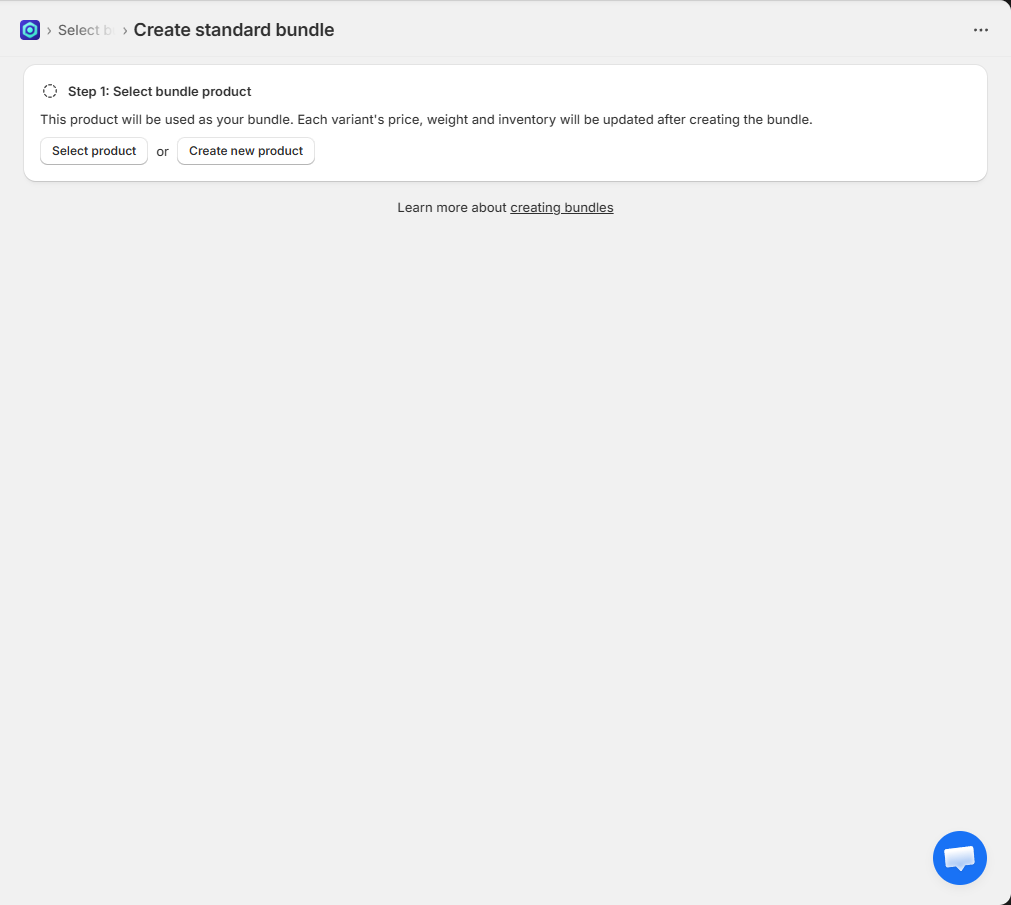
Select a product to use it as the bundle.
* If you already created the product from Shopify admin, click **Select product** and select it from the product picker.
* If you haven't created yet, you can create one by clicking **Create new product**. If the bundle product has multiple variants, add them during creation so they can be configured in the next step.
***
### Step 2: Configure bundle variants
After selecting the bundle product, configure each variant by adding components and setting discount.
We'll use **Shirt + Pants bundle** for an example bundle product, which has two options:
1. Shirt color: Red, Blue, Green
2. Pants color: Black, White
#### Configure variant individually
To configure an individual variant, use the **Add component** and **Set discount** button in **Actions** column in each row.
When you add components, you can see them in the **Components** column and set their quantity.
When setting discount, choose discount type that fits your need:
1. **Percentage off**: A percentage discount applied to the total component price
2. **Fixed amount off**: A fixed discount amount subtracted from the total component price
3. **Fixed price**: Set a fixed price for the variant
#### Configure variants in bulk
When multiple variants have same components or discount, use bulk configuration.
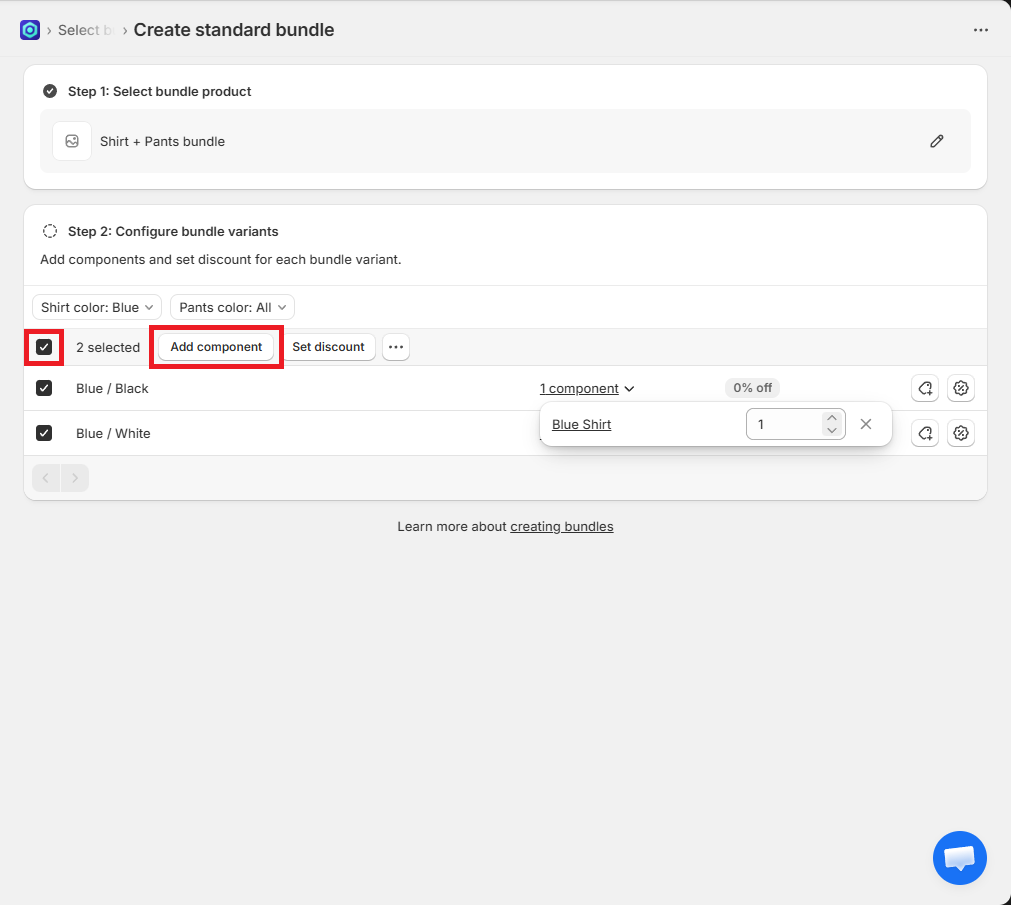
In this example, let's add **Blue Shirt** component to both **Blue / Black** and **Blue / White** variants.
You can filter variants by their option values. Check **Blue** from **Shirt color** option filter.
Then, select all filtered variants by clicking checkbox in table header. Click **Add component** and select **Blue Shirt** from the picker.
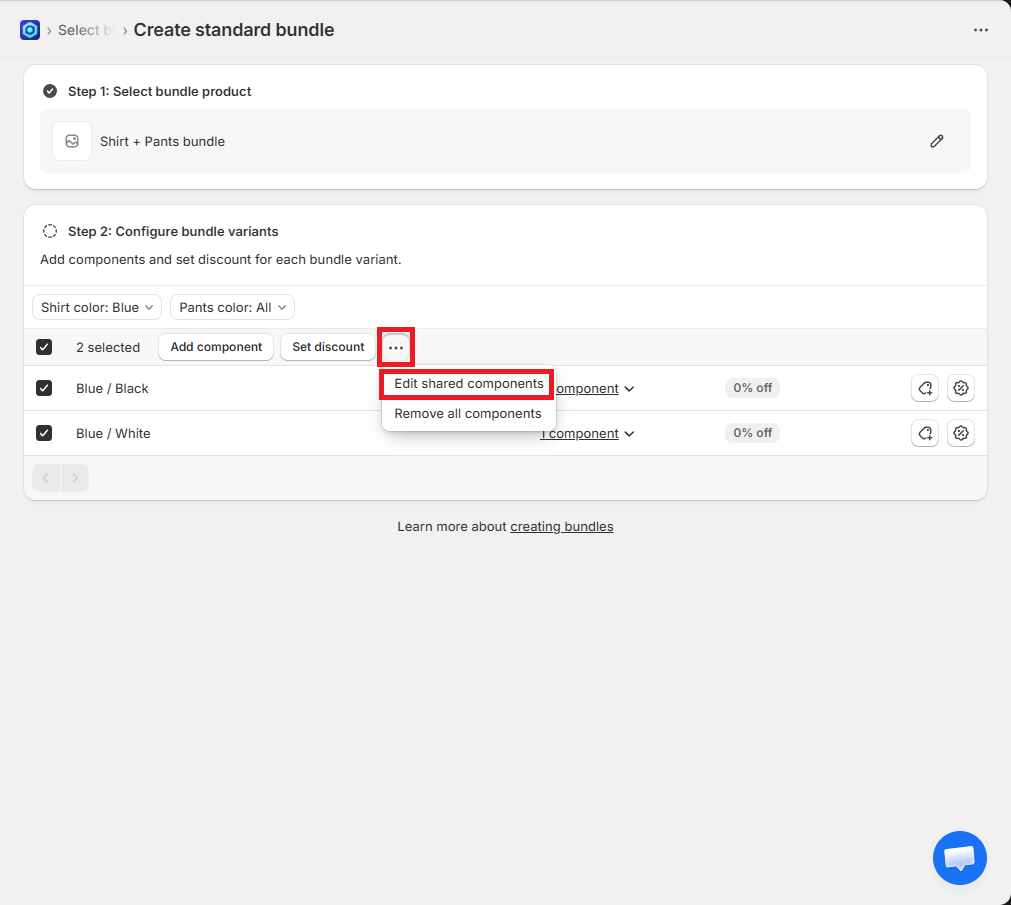
If you need to set quantity for the shared component in selected variants, click :ellipsis: button and select **Edit shared components** from the menu.
Set quantity of shared components
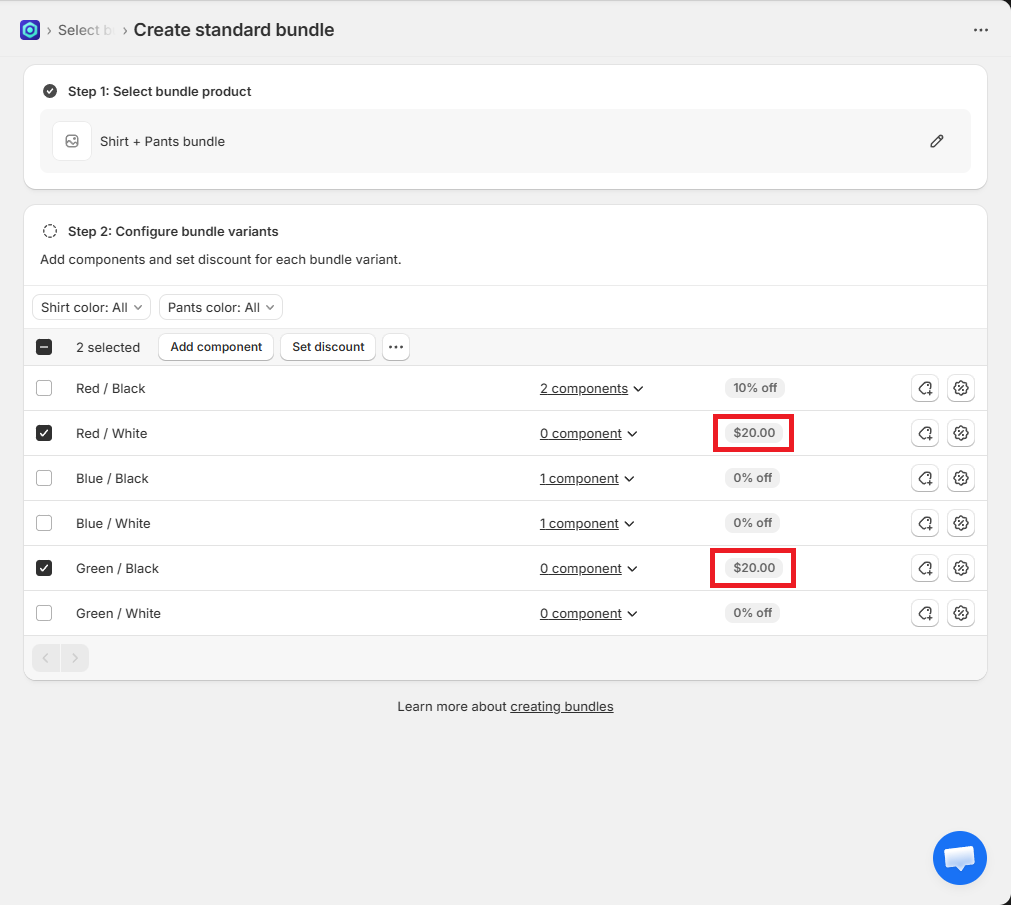
You can also set discount in bulk. In this example, let's suppose **Red / White** and **Green / Black** variant should have fixed price of $20.
Adjust the filters and select the two variants.
Then, click **Set discount** from the header. Select **Fixed price** discount type and input $20.
Same discount is applied to both variants
If a discount was already set before applying, it will be overridden.
***
If you finish configuring all bundle variants, click **Save** in the save bar at the top of the screen. When bundle is created, the app will start updating each variant's price, weight and inventory based on the configuration.
.png?alt=media&token=9d4e143d-b546-42c2-9308-9e301be03e8d)
.png?alt=media&token=4b48384f-edbc-459e-96d1-6edd76fc6d0a)
.png?alt=media&token=6b75cf05-1ddd-4320-a5a1-a9e9efff0c2a)
.png?alt=media&token=47891af9-4101-4223-becf-8f49096bccda)
.png?alt=media&token=fe472f3f-9c6a-43fc-baa8-8bbac6ee2b37)
.png?alt=media&token=d14f5b12-52b9-4bc8-a239-5a28a0a77bb8)
.png?alt=media&token=ef6d6d58-9ade-40e8-9d53-ad0338e6affb)